Teachable AI Curriculum Generator Review: Build a Course Outline in Minutes

In this hands-on review, we’ll examine the quality of the outlines produced by Teachable’s AI tool, assess how much editing is typically needed, and provide a practical workflow to take you from an initial idea to a polished course draft. Whether you’re an experienced educator or just starting your course creation journey, this review will help you determine if this AI tool is worth your time.
What Is the Teachable AI Curriculum Generator?
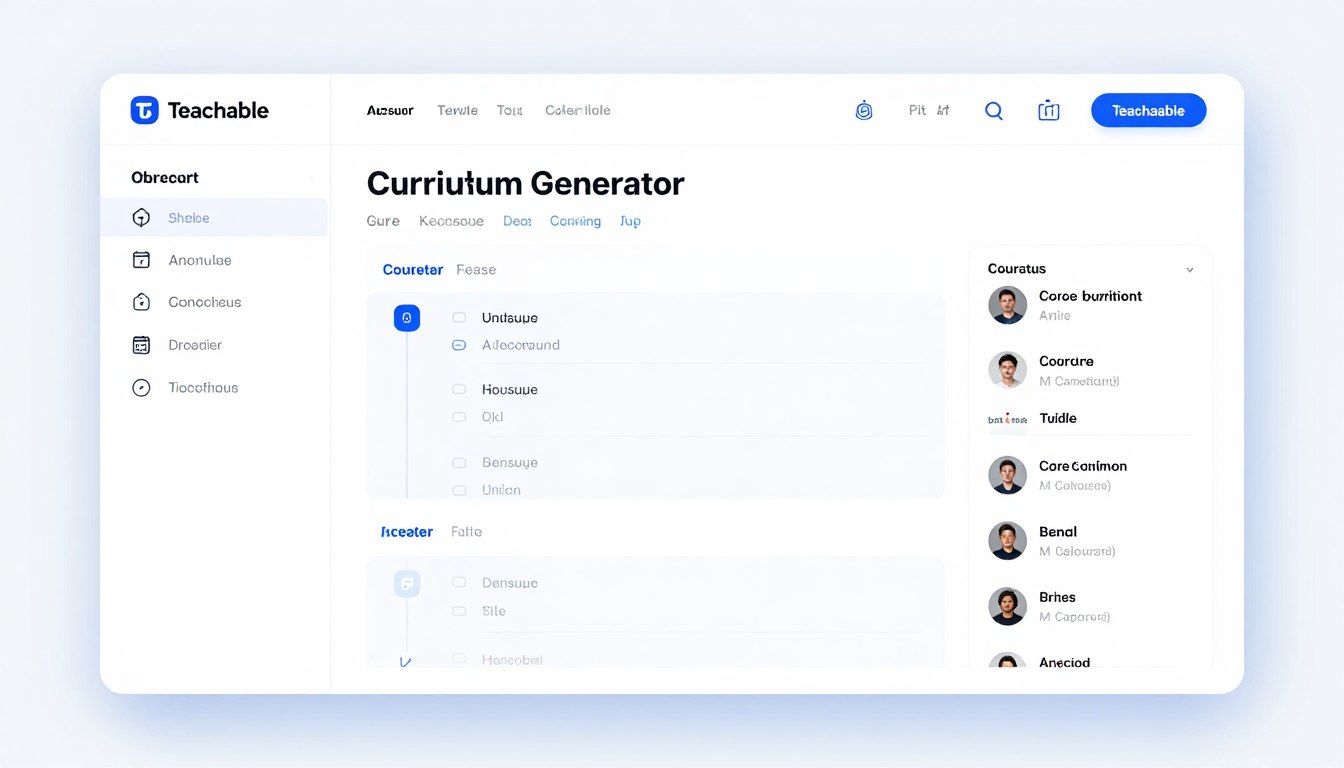
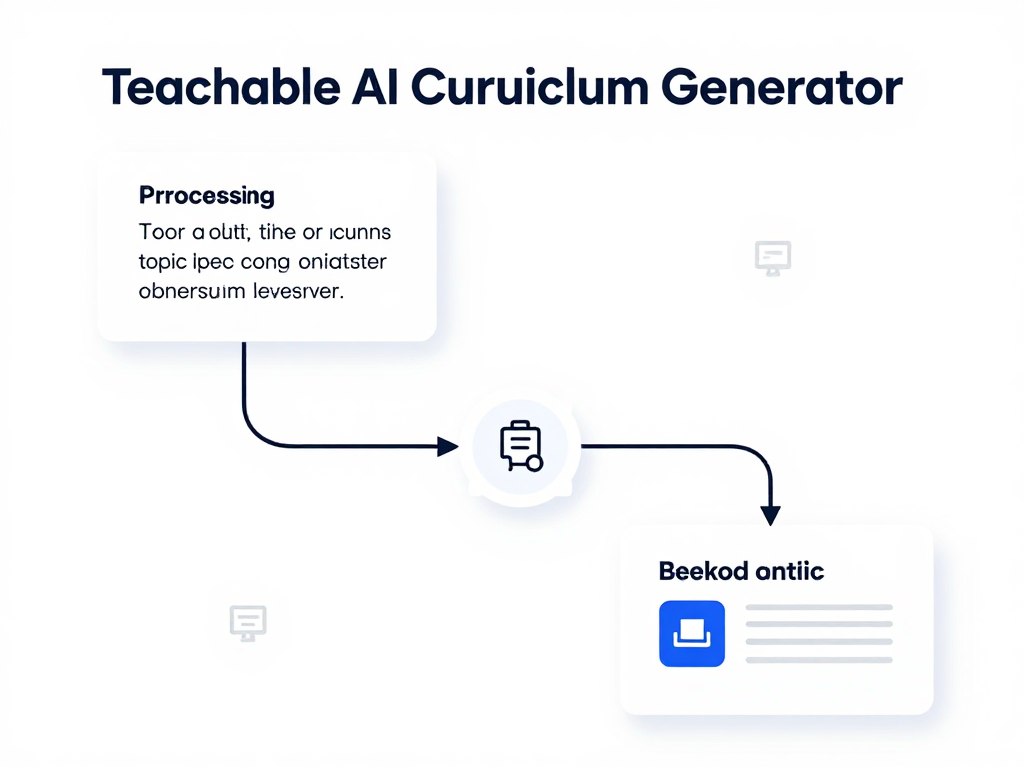
Teachable’s AI Curriculum Generator helps course creators quickly develop structured course outlines. Integrated directly into the Teachable platform, this feature lets you generate a complete curriculum framework by entering your course topic and a brief description.
The tool analyses your input and automatically creates a logical sequence of modules and lessons, saving you hours of planning and organisation. It’s part of Teachable’s broader suite of AI tools, which also includes features such as quiz generation, lesson-writing assistance, and AI-powered subtitles.
Key Features of Teachable’s AI Curriculum Generator
- One-click outline generation based on the course topic
- Logical module and lesson sequencing
- Direct integration with Teachable’s course builder
- Ability to edit and customise generated outlines
- Compatible with other Teachable AI tools for comprehensive course development
Quality Assessment: How Good Are the Generated Outlines?
After testing Teachable’s AI Curriculum Generator across multiple subject areas, I’ve found that the quality of outlines varies depending on the specificity of your input and the complexity of your subject matter. Here’s a detailed breakdown of what you can expect:
Outline Structure and Organisation
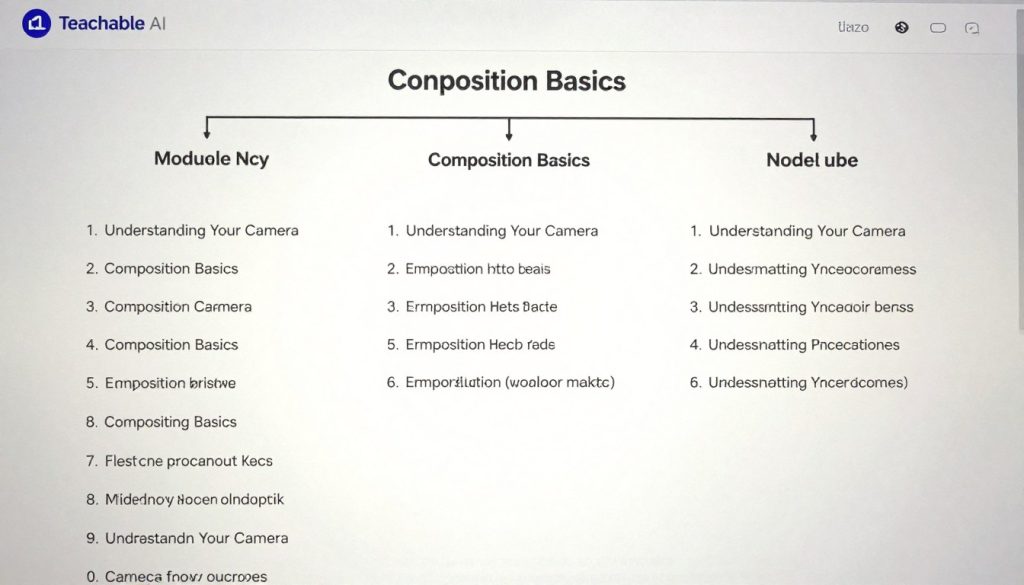
The AI consistently produces well-structured outlines with a logical progression of topics. Each outline typically includes 4-8 modules with 3-6 lessons per module. The sequencing generally follows educational best practices, starting with foundational concepts before moving to more advanced topics.
Relevance and Subject Matter Accuracy
For common subjects like business, marketing, or creative skills, the AI generates highly relevant content that covers most essential topics. However, for specialised or technical subjects, the outlines sometimes miss industry-specific nuances or include overly generic lessons that would need significant customisation.
Depth and Comprehensiveness
The outlines provide a solid framework but typically lack depth in specialised areas. They excel at covering breadth (hitting all major topic areas) but don’t always include the depth needed for comprehensive courses. This is particularly noticeable in professional certification courses or technical subjects where specific methodologies or tools need to be covered.
Adaptability to Different Learning Levels
When specifying beginner, intermediate, or advanced in your course description, the AI does adjust the complexity and scope accordingly. Beginner courses include more foundational concepts, while advanced courses assume prior knowledge and focus more on application and mastery.
Ready to generate your first course outline?
Try Teachable’s AI Curriculum Generator and build your course structure in minutes.
Required Editing: From AI Draft to Polished Outline
While Teachable’s AI Curriculum Generator provides a solid starting point, most outlines will require some level of editing before they’re ready for course development. Here’s what you can expect in terms of necessary revisions:
Common Areas Requiring Modification
Adding Specificity and Examples
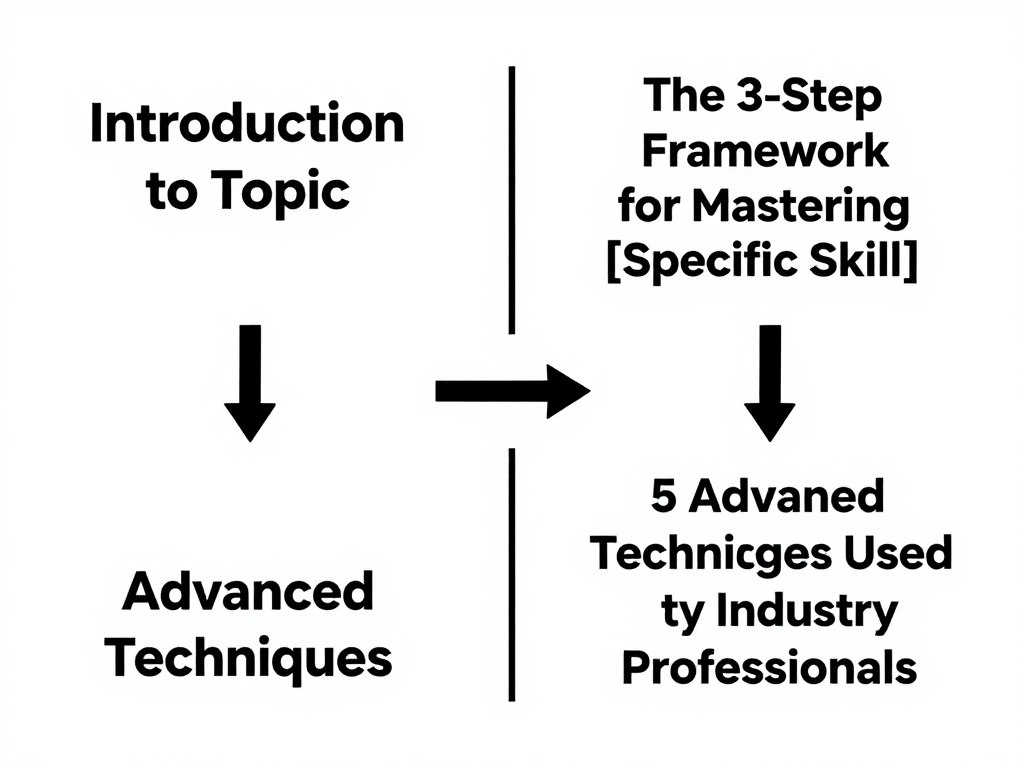
AI-generated outlines tend to use generic lesson titles and descriptions. You’ll need to add specific examples, case studies, and practical applications relevant to your audience and teaching style. For instance, a generic “Introduction to Marketing Strategies” might need to be refined to “5 Proven Marketing Strategies for Small E-commerce Businesses.”
Reordering Content for Better Flow
While the AI generally creates a logical sequence, you may need to reorder some modules or lessons based on your teaching approach or audience needs. This is particularly important for skill-based courses where certain concepts build directly upon others.
Adding Missing Topics
For specialised subjects, you’ll likely need to add industry-specific topics, methodologies, or tools that the AI missed. The generator relies on general knowledge, so niche subjects or emerging trends might be overlooked and will need to be added manually.
Removing Redundant or Irrelevant Content
Sometimes the AI includes topics that aren’t relevant to your specific approach or that repeat concepts covered elsewhere. You’ll need to streamline the outline by removing these redundancies to create a more focused learning experience.
Typical Editing Time Required
Based on my testing across different subject areas, here’s approximately how much time you’ll need to spend editing AI-generated outlines:
| Course Type | Estimated Editing Time | Level of Modification |
| General Skills (e.g., Basic Photography, Intro to Excel) | 15-30 minutes | Minimal (20-30%) |
| Business & Marketing | 30-45 minutes | Moderate (30-50%) |
| Creative Arts | 30-60 minutes | Moderate (40-60%) |
| Technical/Specialized Subjects | 60-90 minutes | Substantial (50-70%) |
| Professional Certification Prep | 90+ minutes | Extensive (60-80%) |
Strengths as a Starting Point
- Saves significant time compared to starting from scratch
- Provides a logical structure and flow
- Helps prevent overlooking fundamental topics
- Offers fresh perspectives you might not have considered
- Integrates seamlessly with Teachable’s course builder
Limitations to Be Aware Of
- Lacks industry-specific depth for specialised topics
- Sometimes includes generic or redundant content
- May miss emerging trends or cutting-edge concepts
- Doesn’t account for your unique teaching style or approach
- Cannot replace subject matter expertise
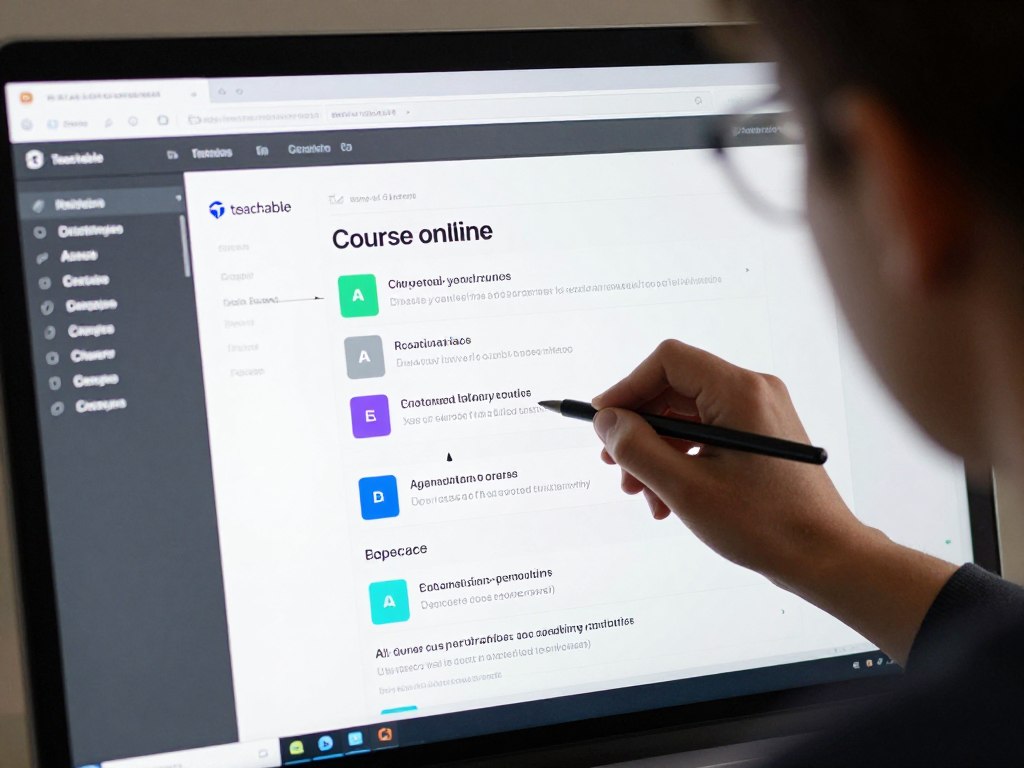
Start-to-Draft Workflow: Creating a Course with Teachable AI
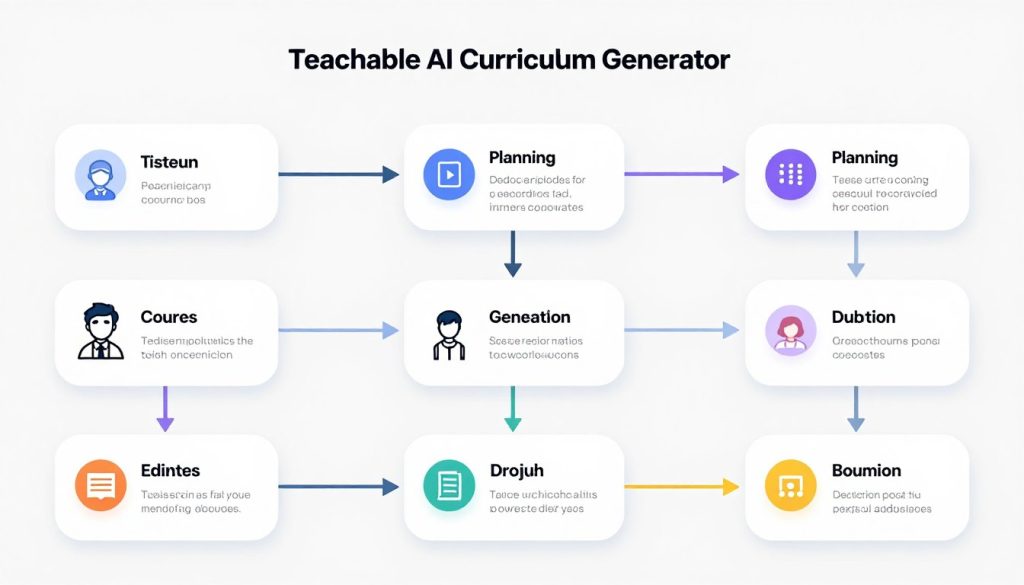
Now that we’ve examined the quality of Teachable’s AI-generated outlines and the editing typically required, let’s walk through a practical, step-by-step workflow to create a course using this tool. This process will take you from initial concept to a polished course draft ready for content development.
Phase 1: Preparation and Planning
- Define Your Course Purpose and AudienceBefore generating anything, clearly define who your course is for and what specific outcomes learners should achieve. Write down 3-5 main learning objectives and identify your target audience’s skill level (beginner, intermediate, or advanced).
- Research Competitive CoursesBriefly review 2-3 similar courses in your niche to identify standard topics, unique selling points, and potential gaps you could fill. This research will help you evaluate and enhance the AI-generated outline later.
- Craft a Detailed Course DescriptionWrite a 2-3 paragraph description of your course that includes the subject area, target audience, skill level, key topics, and desired outcomes. The more specific your description, the better the AI-generated outline will be.
Pro Tip: Include specific methodologies, frameworks, or tools you want to cover in your description. The AI will incorporate these elements into your outline, saving you time on editing later.
Phase 2: Generating Your Initial Outline
- Access the AI Curriculum GeneratorLog into your Teachable account, create a new course, and navigate to the curriculum section. Look for the “Generate with AI” option (usually found near the top of the curriculum builder).
- Input Your Course InformationEnter your course title and paste your detailed course description. Be as specific as possible about the subject matter, target audience, and learning objectives.
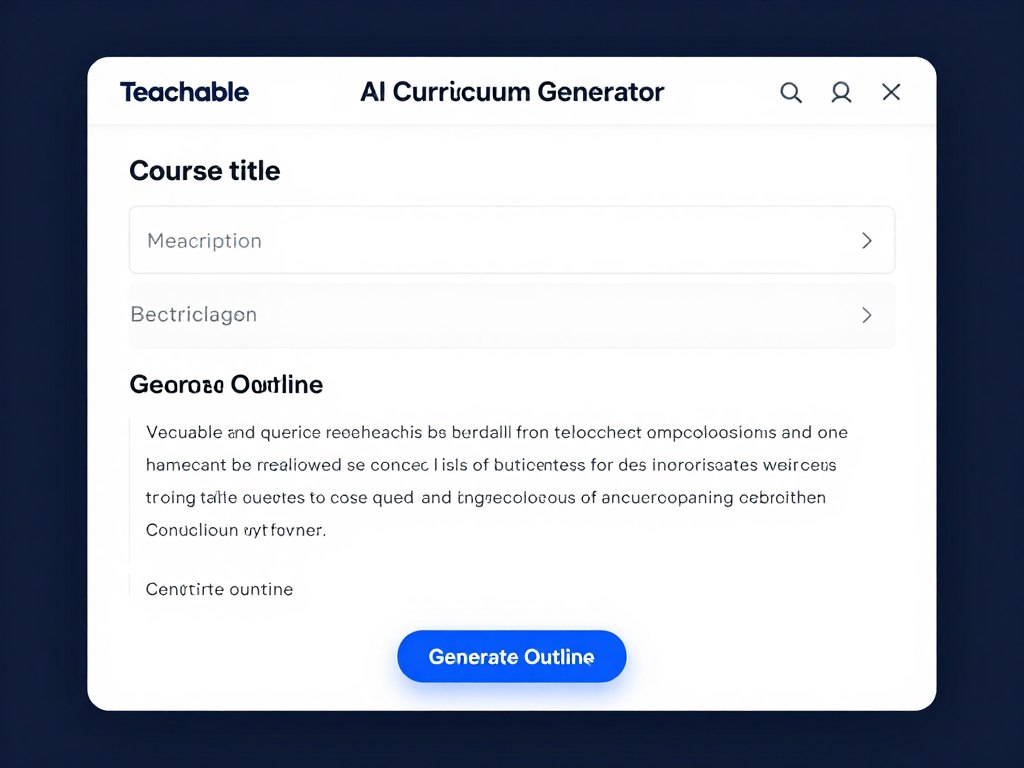
- Generate and Review the Initial OutlineClick “Generate Outline” and wait for the AI to create your course structure. This typically takes 15-30 seconds. Review the generated outline, noting areas that need improvement, missing topics, or sections that should be reordered.
Save hours on course planning
Generate your course outline in minutes and focus on creating great content instead.
Phase 3: Refining and Enhancing Your Outline
- Restructure the OutlineUse Teachable’s drag-and-drop interface to reorder modules and lessons for better flow. Consider the logical progression of concepts and ensure prerequisites are covered before advanced topics.
- Add Specificity to Module and Lesson TitlesEdit generic titles to be more specific and compelling. For example, change “Introduction to Photography” to “Understanding Your DSLR: Essential Settings for Beginners.”
- Add Missing Topics and Remove Irrelevant OnesInsert any industry-specific or specialised topics that the AI missed. Similarly, remove any irrelevant or redundant lessons that don’t serve your learning objectives.
- Add Brief Descriptions to Each Module and LessonWrite 1-2 sentence descriptions for each module and lesson to clarify what will be covered. This helps both you and your future students understand the purpose of each section.
Phase 4: Finalising Your Course Structure
- Plan Assessment and Engagement ElementsIdentify where to add quizzes, assignments, or interactive elements to reinforce learning. Consider using Teachable’s AI Quiz Generator to create assessments based on your lesson content.
- Create a Content Development ScheduleBased on your finalised outline, create a production schedule for developing the actual content for each lesson (videos, text, downloadables, etc.).
- Save and Export Your OutlineOnce you’re satisfied with your outline, save it within Teachable. Consider also exporting it to a document for reference during content creation.
“The Teachable AI Curriculum Generator cut my course planning time in half. While I still needed to customise the outline for my specific teaching style, having a solid structure to start with was invaluable.”
Best Use Cases for Teachable’s AI Curriculum Generator
After thoroughly testing this tool across various scenarios, I’ve identified the situations where Teachable’s AI Curriculum Generator provides the most value:
New Course Creators
If you’re creating your first course and feeling overwhelmed by the structure, this tool provides an excellent framework to build upon. It helps overcome the “blank page syndrome” that often prevents new creators from getting started.
Expanding Your Course Catalogue
When adding new courses to your existing catalogue, the AI generator helps maintain a consistent structure across all your offerings while significantly reducing planning time for each new course.
Testing New Course Concepts
Before investing significant time in developing a new course, use the AI generator to quickly create an outline that you can share with potential students for feedback on the content and structure.
Subject Areas Where the AI Excels
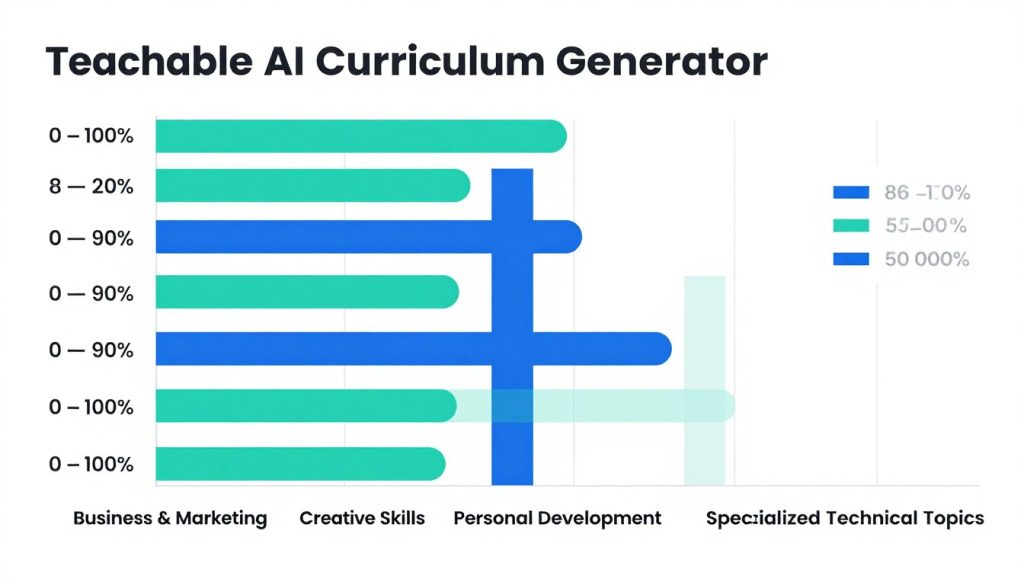
Highly Effective For:
- Business and Marketing – The AI has strong knowledge of standard business frameworks and marketing concepts
- Creative Skills – Art, photography, writing, and design courses benefit from well-structured progression
- Personal Development – Self-improvement, productivity, and wellness courses follow recognisable patterns
- Basic Technology Skills – Introductory software, coding, and digital tools courses have standardised approaches
Less Effective For:
- Highly Technical Subjects – Specialised programming, engineering, or scientific topics often need expert structuring
- Certification Preparation – Courses aligned with specific certification requirements need precise content mapping
- Cutting-Edge Topics – Very new or emerging fields may not be well-represented in the AI’s knowledge base
- Unconventional Teaching Approaches – If your teaching methodology is unique, the AI may generate too conventional an outline
How Teachable’s AI Generator Compares to Alternatives
To provide context for this review, I’ve compared Teachable’s AI Curriculum Generator with other popular options available to course creators:
| Feature | Teachable AI | ChatGPT | Heights Platform AI | Graphy |
| Outline Quality | Good (3.8/5) | Good (3.7/5) | Very Good (4.2/5) | Very Good (4.3/5) |
| Integration with Course Platform | Native | None | Native | Native |
| Editing Capabilities | Good | Limited | Excellent | Very Good |
| Additional AI Course Tools | Quiz Generator, Subtitles | None | AI Coach, Content Review | Content Suggestions |
| Specialised Subject Handling | Moderate | Good with prompting | Very Good | Good |
| Time Savings | 60-70% | 40-50% | 70-80% | 65-75% |
The main advantage of Teachable’s AI Curriculum Generator is its seamless integration with the Teachable platform. While standalone AI tools like ChatGPT can generate outlines, they lack the direct integration that allows you to immediately build upon the generated structure within your course platform.
Final Verdict: Is Teachable’s AI Curriculum Generator Worth It?
After thoroughly testing Teachable’s AI Curriculum Generator across multiple subject areas and use cases, I can confidently say it delivers significant value for most course creators. While not perfect, it dramatically reduces the time required to structure a course and provides a solid foundation that you can refine and enhance.
Pros
- Saves 3-5 hours of planning time per course
- Creates logically structured, well-organised outlines
- Seamlessly integrates with Teachable’s course builder
- Works well for common subject areas
- Complements other Teachable AI tools for comprehensive course development
- Helps overcome “blank page syndrome” for new creators
Cons
- Requires moderate editing for specialised subjects
- Sometimes generates generic lesson titles
- May miss niche-specific topics or emerging trends
- Cannot replace subject matter expertise
- Limited customisation options during the generation phase
Who Should Use Teachable’s AI Curriculum Generator?
Ideal For:
- New Course Creators who need guidance on course structure
- Time-pressed educators looking to streamline their workflow
- Content Experts who struggle with organising their knowledge
- Course Creators Scaling Their Catalogue who need consistent quality across multiple courses
Less Suitable For:
- Highly specialised technical Instructors who need precise, industry-specific structuring
- Certification Course Creators who must align exactly with specific exam requirements
- Educators with Unconventional Teaching Methods that don’t follow standard course structures
The bottom line: Teachable’s AI Curriculum Generator is a valuable tool that significantly reduces the time and effort required to create well-structured course outlines. While it won’t replace your expertise or eliminate the need for customisation, it provides an excellent starting point that can save hours of planning time for each new course you create.

Ready to streamline your course creation process?
Try Teachable’s AI Curriculum Generator today and transform your course ideas into structured, ready-to-build outlines in minutes.
Frequently Asked Questions
Is Teachable’s AI Curriculum Generator included in all Teachable plans?
Teachable’s AI Curriculum Generator is available on the Basic plan and above. It is not included in the Free plan. The Basic plan starts at /month (billed annually) and includes access to all of Teachable’s AI tools, including the curriculum generator.
How much time does the AI Curriculum Generator actually save?
Based on my testing, the AI Curriculum Generator saves approximately 60-70% of the time typically spent on course structuring. For a course that would normally take 5-6 hours to outline from scratch, you can expect to spend about 1.5-2 hours using the AI generator (including generation and editing time).
Can I use the generated outline outside of Teachable?
Yes, you can copy the generated outline and use it on other platforms or in your planning documents. However, you’ll lose the integration benefits of using it directly within Teachable’s course builder.
Does the Teachable AI Curriculum Generator work for all languages?
The AI Curriculum Generator works best with English input. While it can generate outlines based on other languages, the quality and accuracy may vary. For non-English courses, you might need to do more extensive editing of the generated outline.
Can I regenerate an outline if I’m not satisfied with the results?
Yes, you can generate multiple outlines for the same course. If you’re not satisfied with the initial results, you can refine your course description to be more specific and generate a new outline. There are no limits on how many times you can use the generator for a single course.