Choosing a Voice AI Tool for Secure Webinars

If you run paid or large‑scale webinars for your courses, a voice AI tool can be the difference between an inclusive, high‑impact session and a chaotic, leaky event. The right setup delivers clear audio, accurate live captions, multilingual access and professional narration. The wrong one can expose you to bot abuse, privacy risks and brand damage. This guide shows course creators how to choose a voice AI tool with security in mind, then roll it out without adding friction for real learners.
What voice AI brings to webinars
Voice AI covers several capabilities that directly improve learner experience and reach:
- Live speech-to-text captions and transcripts, support accessibility, help non-native speakers, and increase retention for complex topics.
- Real-time translation and interpretation, open your session to global audiences without hiring interpreters for every language.
- Text-to-speech narration, lets you produce polished openings, summaries and follow-ups with consistent brand voice.
- Noise suppression and voice enhancement, keep audio intelligible when presenters are remote or travelling.
- Smart recording and meeting assistants, create searchable notes, action items and shareable highlights for attendees.
Security and privacy must sit alongside these benefits. Webinars attract fake signups, coupon abuse, credential sharing and disruptive bots. Adding a light verification step and picking privacy-conscious voice AI can maintain trust while keeping conversions high.
A security-first checklist for choosing a voice AI tool
Use this checklist to shortlist a voice AI tool without compromising security:
- Lawful basis and consent, state clearly that audio will be processed for captions, translation or recordings. In the UK, check your lawful basis under the ICO’s guidance on lawful processing.
- Data handling transparency, confirm where audio and transcripts are processed and stored, data retention period, encryption in transit and at rest, and whether vendor models are trained on your content by default.
- On-device options when possible, for noise suppression and mic cleanup, an on-device engine reduces exposure. For example, Krisp describes how its processing works locally in its technology overview.
- Access control around assets, only verified attendees should access live rooms, recordings and transcripts. Gate sensitive links with a human verification step and standard authentication.
- Vendor integration and lock-in, prefer tools that integrate natively with your webinar platform or offer webhooks and APIs, so you can swap components later.
- Reliability and latency, live captions and translation should feel immediate. Test in realistic network conditions and have a backup plan if the AI service degrades.
- Accessibility and inclusion, follow WCAG guidance for captions. W3C’s overview of live captions is a good baseline (WCAG 2.2, Captions Live).
Voice AI categories and tool examples
Below are the categories most course creators evaluate for secure webinars, with buying tips and examples. For deeper tool-by-tool comparisons, see our roundups like Top 10 AI Voice and TTS Tools for Content Creators and head-to-heads such as ElevenLabs vs Murf vs Play.ht.
1) Live captions and transcription
What to look for: accuracy with your subject matter, per-speaker labelling, punctuation, searchable transcripts, and admin controls for sharing. Ensure participants consent to recording or transcription. If you use Zoom, enable native automated captions for a good baseline. Dedicated tools like Otter.ai add collaborative notes and summaries, which help with post‑event learning materials.
Security tips: make transcript links private, share only with verified registrants, and disable data retention you do not need.
2) Real-time translation and interpretation
What to look for: supported languages, latency, domain adaptation, and whether humans or AI handle the translation. AI interpretation platforms like Wordly or interpretation services with AI assist can be cost-effective for multilingual webinars.
Security tips: choose vendors that respect data minimisation. Do not pipe unvetted chat questions straight to translation and back to the room without moderation.
3) Text-to-speech for narration and intros
What to look for: naturalness, brand voice controls, licensing that covers commercial webinars, pronunciation dictionaries, and SSML support. TTS leaders include ElevenLabs, WellSaid Labs, Murf and Play.ht. For quick picks by use case, see WellSaid Labs vs Replica Studios and our broader AI Voice Generation for Verified Q&A Sessions.
Security tips: if you clone a real presenter’s voice, get explicit written consent and limit access to the cloned voice. Never use a cloned voice to answer live questions without disclosure.
4) Noise suppression and voice enhancement
What to look for: on-device processing, low CPU or GPU load, and compatibility with your conferencing app. Krisp or hardware-accelerated options like NVIDIA Broadcast can clean up audio for travelling presenters.
Security tips: on-device processing limits data leaving the machine. Still inform speakers that their audio is processed by noise removal software.
5) Recording assistants and summaries
What to look for: reliable diarisation, topic summaries, action items, and safe sharing controls. Tools such as Fireflies and native platform assistants can save hours when preparing post‑webinar resources.
Security tips: restrict bots to your rooms, audit data retention, and store recordings behind the same access controls as course content. If you use Zoom, consider E2EE for sessions that need maximum privacy (Zoom E2EE overview).
Quick comparison by need
| Capability | Why it matters for secure webinars | Example tools | Notes |
|---|---|---|---|
| Live captions and transcripts | Accessibility, comprehension, and searchable notes | Zoom Captions, Otter.ai | Gate transcript access, disclose recording and processing |
| Real-time translation | Inclusive global reach without high interpreter costs | Wordly, Interprefy, Zoom Translated Captions | Test languages that match your audience and content |
| TTS narration | Consistent openings, bumpers and follow-ups | ElevenLabs, WellSaid, Murf, Play.ht | Confirm licensing for commercial use and voice cloning consent |
| Noise suppression | Clear, low-fatigue audio in imperfect environments | Krisp, NVIDIA Broadcast | Prefer on-device for privacy and reliability |
| Recording assistants | Post‑event materials in hours, not days | Fireflies, native platform AI | Keep recordings private and time‑limit access |
Note: Examples are representative, not exhaustive. Evaluate against your LMS, webinar platform and privacy needs. For more vendor detail, see our comparisons linked above.
Implementation blueprint that balances access and safety
Follow this seven‑step plan to deploy voice AI without inviting bots or friction:
- Define your voice AI goals early, list exactly what you will use, captions, translation, TTS intros, summaries. Map each to learner value and operational effort.
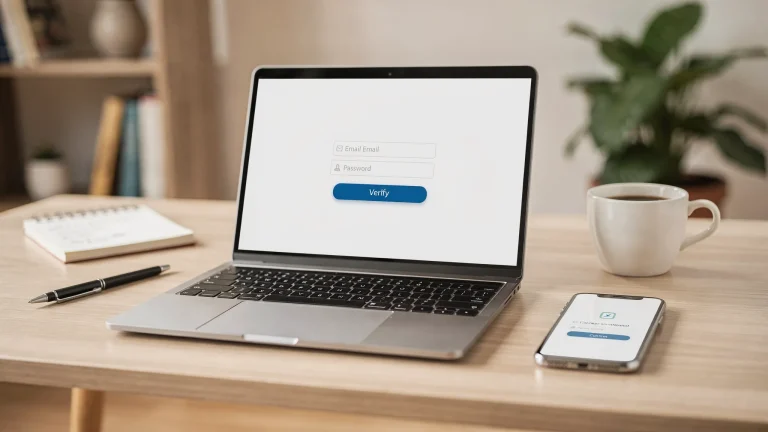
- Add a human verification gate before access, place a lightweight check between registration and join, or at the moment a user requests the live link. Our own AI Assistant Strategies for Frictionless Verification explains how behavioural and conversational checks reduce spam without hurting conversions.
- Collect consent in plain language, show a short notice at registration and pre‑join: audio will be processed for captions, translation or recording. Link to your privacy notice.
- Configure your voice AI tools, prefer on-device noise suppression, disable unnecessary data retention, and restrict who can share transcripts and recordings.
- Run a rehearsal under real conditions, include a test of the verification step, captions, translation and recording. Check latency, accuracy and accessibility.
- Moderate Q&A and chat, route questions through a moderator, not directly to TTS or translation outputs. This keeps spam and prompt‑hacking attempts off the main audio stream.
- Post-event, share materials behind access control, publish recordings, transcripts and translated notes only to verified attendees. Consider expiring links or watermarking. For additional tips, see Content Creation with AI, Securely Shared with Students.
Red flags to avoid when choosing a voice AI tool
- Vague data policies, if the vendor cannot document where audio is processed and stored, how long it is kept, and whether it trains models with your content, look elsewhere.
- No opt-out for training, if opting out of model training requires a support ticket or is unavailable, consider the reputational risk.
- Real-time voice cloning without disclosure, misleading audiences is both risky and unethical. Always disclose when an AI voice is speaking.
- Always-on recording, default-to-record without clear notices undermines trust and may breach privacy rules.
- No linkage to access control, captions and transcripts that are public by default will leak your premium content.
Budget and licensing tips for course creators
- Start with native features, if your webinar platform offers acceptable captions and translated captions, pilot those first. Upgrade only where gaps remain.
- Pay for one job at a time, rather than an expensive suite you will not fully use, pick a best-in-class tool for the one capability that moves the needle this quarter.
- Check commercial and redistribution rights, make sure your TTS licence covers promotional clips and recorded replays.
- Negotiate data retention windows, ask vendors to shorten retention or disable training on your content where possible.
Quick picks by scenario
- You need inclusive captions fast, try your platform’s native captions first, then pilot Otter or a similar tool if you need searchable team notes.
- You are onboarding a multilingual cohort, pilot AI interpretation for your top two languages, record translated transcripts, and invite feedback before expanding.
- You want polished openings and closers, use a TTS voice that matches your brand, disclose where it is used, and keep live Q&A human.
Frequently Asked Questions
Do I need consent to transcribe or translate audio in a webinar? Yes, inform attendees in advance that audio will be processed for captions, translation or recording, and state your lawful basis. The ICO provides guidance on lawful processing under UK GDPR. This is not legal advice, consult your counsel for specifics.
Which webinar platforms handle captions natively? Zoom, Microsoft Teams and Google Meet all provide native captions, with varying support for translated captions. Zoom’s guide to enabling automated captions is a good place to start.
How do I keep transcripts and recordings private? Restrict access to verified registrants, expire links after a reasonable period, and avoid posting raw transcript URLs publicly. Pair your webinar platform with a simple verification step before serving downloads.
Is on-device noise suppression better for privacy? Often yes, on-device processing like Krisp’s approach reduces what leaves the machine. Still review vendor disclosures and inform speakers how their audio is handled.
Can I use a cloned voice for my webinar? Only with explicit consent and clear disclosure. Use cloned voices for pre-recorded intros or multilingual versions, and keep live Q&A human to avoid confusion and trust issues.
Will a verification step hurt my attendance rate? A lightweight human check usually removes fake signups and bots with minimal impact on genuine learners. See our practical guide, Best AI Tools to Stop Spam Signups, for a low‑friction rollout.
What latency is acceptable for live captions or translation? It should feel near real time. Test with your content and network conditions. Sub‑second delays are common, but accuracy and stability matter more than a raw number.
How do I balance accessibility with security? Follow WCAG for captions and ensure your verification step is accessible on mobile and with assistive tech. Our article on AI Assistant Strategies for Frictionless Verification outlines practical approaches.
The secure way to add voice AI to your webinars
You do not have to choose between accessibility and security. Use native captions where they are good enough, add best‑in‑class tools where they are not, and gate access with a human‑friendly verification step so only real learners enter the room or view the replay.
Add a simple verification step to your webinar registration or pre‑join page with Bot Verification. It confirms users are human before granting access, so your captions, translations and recordings stay in trusted hands. See how it works and request a quick demo at Bot Verification.